Talking-head auto editing: zooms and captions
Turn a talking-head clip into a captioned edit with timed punch-ins. Learn the upload, preparation, review and export workflow in Korpi Auto Edit.
Published
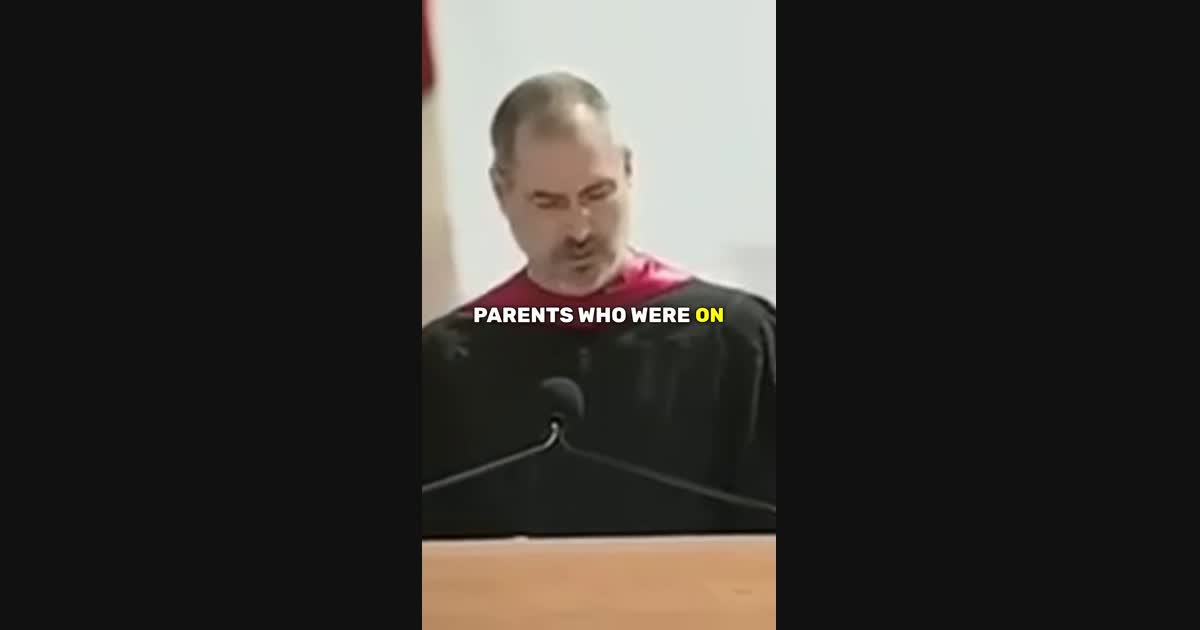
Talking-head auto editing turns an existing recording into an edit with captions, timed zooms and emphasis graphics. Korpi Auto Edit accepts an uploaded video or a supported YouTube or TikTok link, prepares the edit, then renders a finished video. You keep the original speaker and audio.
The useful goal is a clear explanation, not constant movement. Start with one complete idea and let the edit emphasize the words that carry it. This guide explains what Auto Edit changes, what remains editable, and what to check before publishing.
Choose a clip that stands on its own
Use footage you own or have permission to edit. Pick a talking-head segment with clear speech, a visible speaker and enough room around their face for captions and graphics. Auto Edit processes up to two minutes at a time; the upload control shows the current file-size limit.
If you have a long interview and still need to find an excerpt, use Auto Clipper first. Clipping chooses a segment; Auto Edit adds visual emphasis to a segment you have already chosen. The clipping review checklist helps avoid an excerpt that loses the answer's context.
Upload, trim and choose the frame
- 1Open Auto Edit from Tools and upload the recording, or choose Paste link and import a supported source.
- 2Set start and end times around a complete sentence or explanation. Keep the selection within two minutes.
- 3Choose 9:16, 16:9, 1:1 or 4:5 for the destination. Enable speaker reframing when converting a wide recording to a narrower frame.
- 4Review the displayed credit estimate, then choose Generate. Preparation transcribes the selected audio and builds the edit; the final video renders afterward.
Custom preparation and rendering require an eligible paid plan and sufficient credits. Check the estimate shown for your selected length and account; review current plans before starting a larger project.
How auto zooms and captions work together
Auto Edit selects key lines from the transcript. Punch-ins emphasize those intervals, while captions carry the surrounding speech. When a large graphic appears, captions pause so two text layers do not compete for the same moment. Captions resume after the graphic.
A zoom should support a change in emphasis. Watch for a face that becomes too tightly cropped, hands disappearing from an explanation, or a reframed shot that loses a second speaker. Automatic framing is a starting point; review the actual result.
For the large text treatment, read how kinetic text works behind a speaker.
Review the result in the editor
Open the prepared project in the editor to inspect the caption clips, graphic shots and punch-ins. Caption wording and styling, graphic clip timing, and zoom clips can be adjusted. Graphic text is baked into its rendered shot: moving or trimming that clip is supported, but changing its words requires regenerating the edit.
Play the finished video from beginning to end. Check names and technical terms in the captions, cuts around the first and last word, and text clearance around the face. Watch once with sound and once muted. Download the final file only after checking both speech and visual timing.
When to choose another workflow
Use Auto Edit when your footage already contains the performance you want to keep. For an original narrated video made from a script, choose a video creator. For selecting highlights from a longer recording, compare clipping workflows.
Ready with your clip? Open Auto Edit and start with one complete idea.
See what else Korpi makes
Every video below is a real render — click one and make your own version.
Ready to create viral content?
Watch public examples free. Generating and exporting your own video requires a paid plan and available AI credits.
Try Korpi AI NowFound this helpful? Share it with other creators!