How to Create Finance Stickman Animation Videos with AI, Step by Step
The exact Korpi workflow for faceless personal finance explainers with a recurring stick-figure host: pick the frame, generate a Concept Explainer script, review the scenes, add a narrator and render.
Published
Quick answer
Open Stickman Finance. On the Script tab, keep 16:9 for YouTube or switch to 9:16 for Shorts, click Generate w/ AI, keep the Concept Explainer script type and pick a duration (90 seconds by default). On the Scenes tab, review the cast and generate the scenes. On the Audio tab, the calm narrator is already set; turn on captions or music if you want them, then click Generate video.
What a stickman finance video looks like
It is a faceless personal finance explainer. A recurring stick-figure host, always in a green headband, a plain white tee and dark blue jeans, walks through one money idea with simple dollar math and props: pay stubs, calculators, cash, piggy banks and bills. One calm narrator reads over clean cartoon scenes.
The example video opens on the host holding a newly opened paycheck and follows the money from there.
Step 1: Open the creator and pick the frame
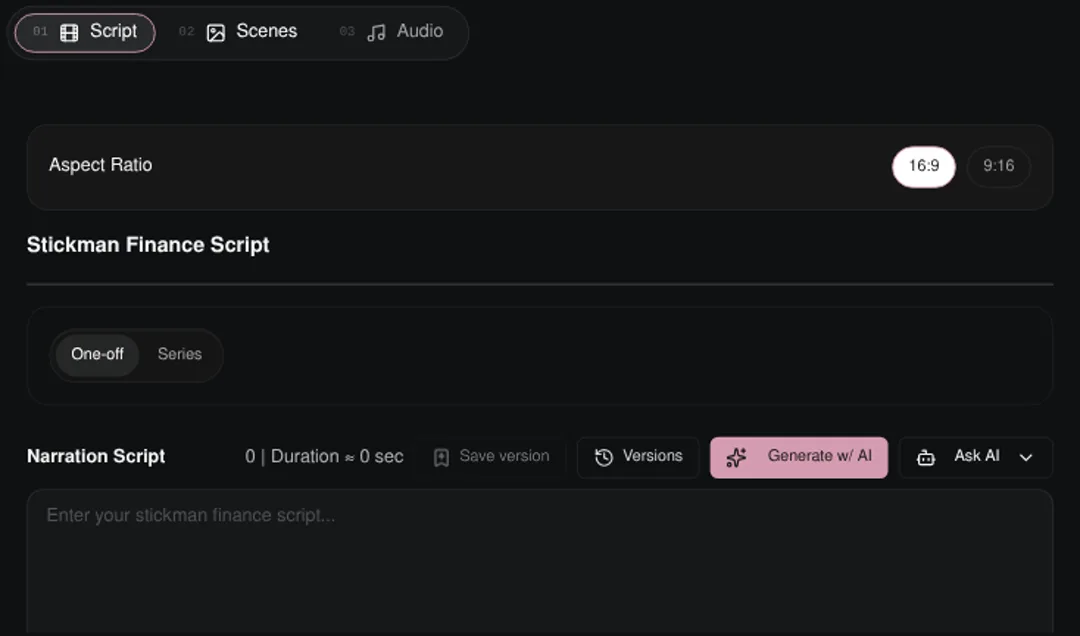
Open Stickman Finance. The Script tab starts with Aspect Ratio: 16:9 is selected for standard YouTube videos, and 9:16 makes Shorts, TikTok and Reels. Below it are the One-off / Series switch and the Narration Script box.
Step 2: Generate the script
Click Generate w/ AI.
- 1Script Type. Concept Explainer is the default: "One big idea in five beats — Hook → Confusion → Definition → Metaphor → Payoff." Discipline Story and Psychology Advice also suit money topics.
- 2Duration. 1 minute, 90 seconds (the default), 2, 3, 5 or 10 minutes. 5 and 10 minutes are long-form and lock the frame to 16:9.
- 3Source. Idea List suggests topics. Custom Subject takes a Concept (for example "Compound Interest") and The Angle (for example "Why $200 A Month Becomes $500,000"), plus optional extra direction. Remix Video writes a new script from a link.
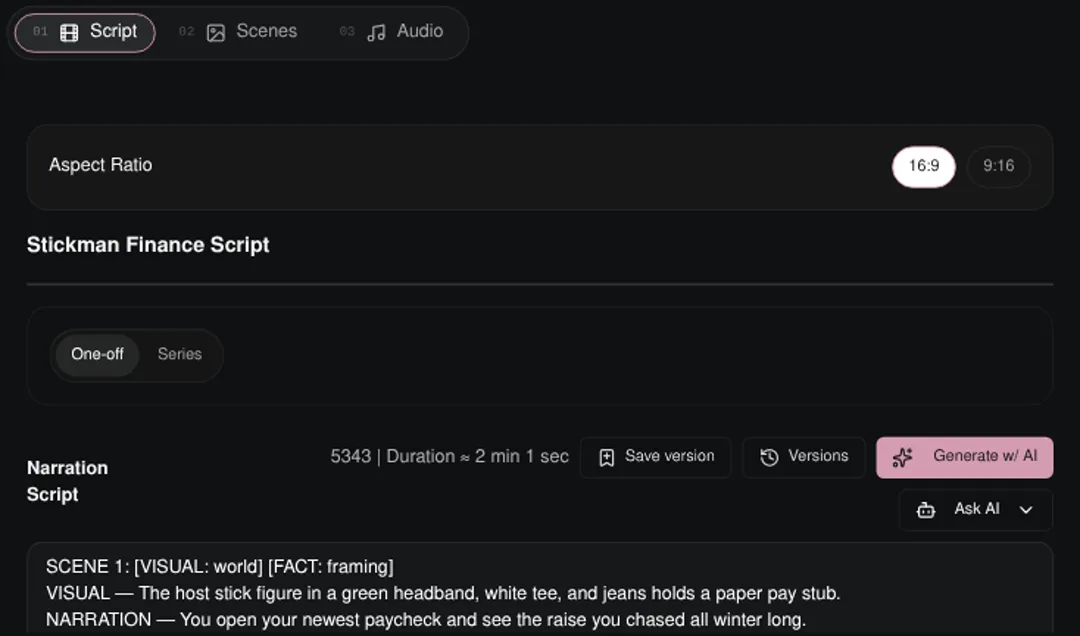
The script lands in the Narration Script box. Each scene line carries a visual tag (world, close-up and so on), a fact tag, the visual and the narration, so you can check every claim before you make scenes. Use Save version and Versions to keep drafts.
Tip: put one real number in every beat. Finance viewers trust specifics, and the fact tags make them easy to check.
Step 3: Review the cast and generate scenes
On the Scenes tab, click Generate Scenes and Characters. Korpi finds the host and any other characters and settings and shows them under Review your elements. Approve or regenerate them, then click Continue to scene images, or Skip references if you do not need them.
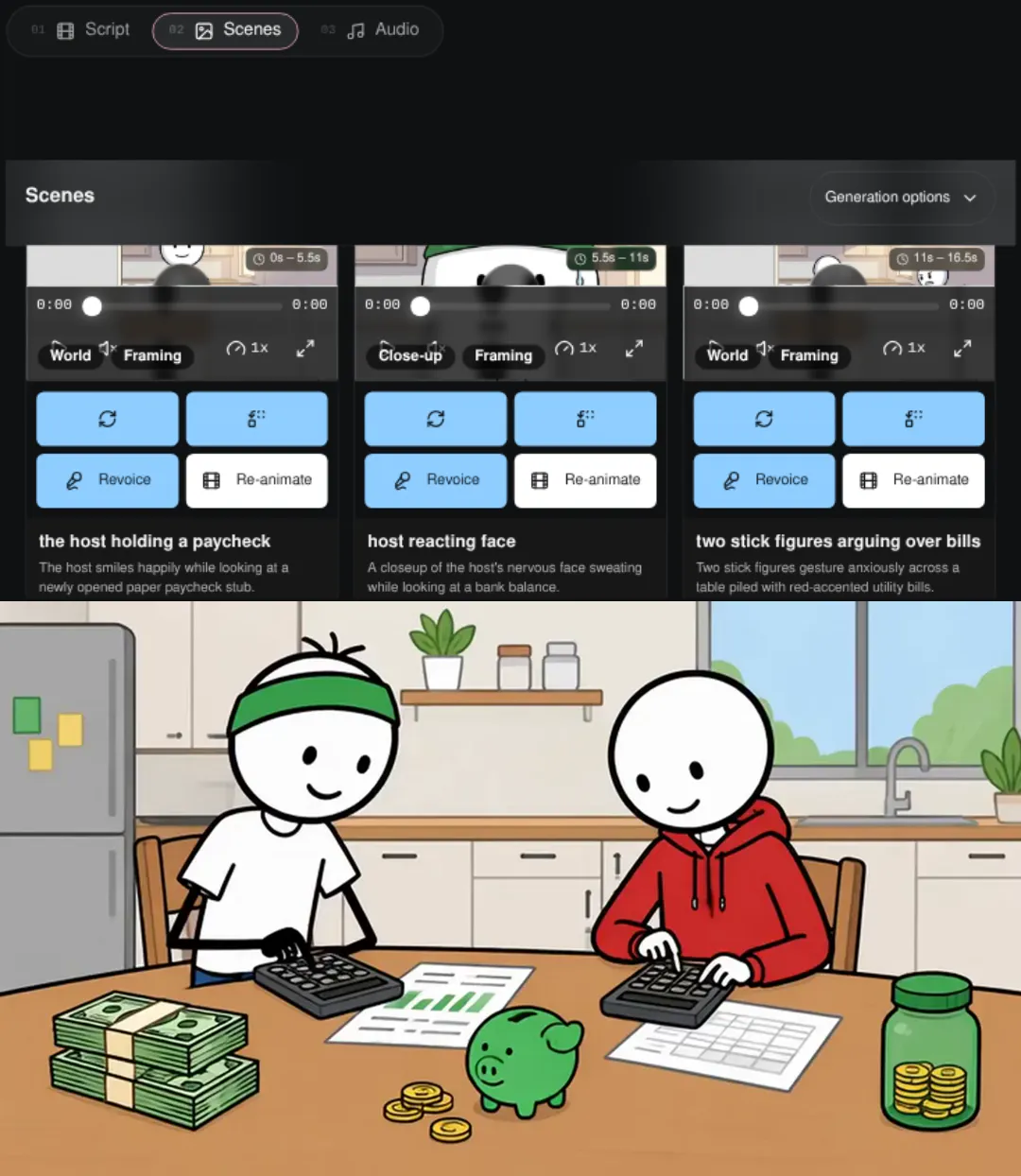
Each scene card shows its visual device, its fact label and a short description. Regenerate any scene, replace it with your own media, or animate it. Animate All animates every scene.
Step 4: Narrator, captions and render
The Audio tab has a fixed calm narrator ("Calm, deliberate narration with natural pauses"), or you can Upload voice. Background music is optional and off by default. Burned-in captions are off by default; turn them on and pick a style if your audience watches muted.
Click Generate video.

Plan it for free first (optional)
If you work inside Claude or ChatGPT, connect Korpi MCP. Its script and storyboard planning tools are free on every account, no plan needed. Check the math in chat, then paste the final script into the Narration Script box.
What makes a stickman finance video work
- One idea per video. Compound interest, an emergency fund or a raise that disappears. Not "personal finance".
- Show the money. Cash, bills and calculators on screen make abstract numbers concrete.
- Use the same host. A recurring character turns a series of explainers into a channel.
- End on one action. "Move $50 this Friday" is better than "start saving".
Stickman Finance FAQ
What aspect ratio should I use?
16:9 is the default for YouTube. Switch to 9:16 on the Script tab for Shorts, TikTok and Reels. Five- and ten-minute scripts are always 16:9.
Can I use my own script?
Yes. Paste it into the Narration Script box instead of generating one. Korpi plans the scenes from your text.
Does the host stay the same?
Yes. The host always wears a green headband, a white tee and dark blue jeans, and Korpi reuses his reference in every scene.
Is it free?
You can watch the example free, and planning through Korpi MCP is free on any account. Generating and exporting your own Stickman Finance video needs a paid Korpi plan. See pricing for current plans.
See what else Korpi makes
Every video below is a real render — click one and make your own version.
Ready to create viral content?
Watch the example free and plan scripts free with Korpi MCP. Generating and exporting your own Stickman Finance video requires a paid plan.
Open This NicheFound this helpful? Share it with other creators!