How to Make a Bible Story Video, Step by Step
The exact Korpi workflow for narrated Bible story shorts: pick the Bible script type, generate a script that names its source, keep one cast across cinematic scenes, add music and captions, and render.
Published
Quick answer
Open Religious Stories. On the Script tab, click Generate w/ AI, keep the Bible script type, pick a duration and generate ideas or write your own arc. On the Scenes tab, Korpi builds a consistent cast and the cinematic scenes. On the Audio tab, check the music and captions, then click Generate video. Each video names its source and ends on a universal lesson.
What a Bible story video looks like
It is a short, reverent retelling of one well-known Bible story, read by one narrator over warm, painterly scenes of the ancient world: stone towns, wheat and barley fields, oil lamps and dusty roads. The same characters keep the same faces and clothes in every scene.
The example video tells the story of Ruth and Naomi. Naomi tells her daughters-in-law to go home, Ruth refuses to leave her, and the story follows Ruth into the barley fields at harvest.
Step 1: Choose the Bible script type
Open Religious Stories. The first tab is Script, with a One-off / Series switch and a Narration Script box. Click Generate w/ AI.
Under Script Type, Bible is selected by default: "Reverent cinematic retellings of well-attested Bible stories — David and Goliath, Ruth and Naomi, the Good Samaritan — each naming its source and ending on a universal lesson." The same creator also has Quran, Torah and Buddhist Teachings script types if you make faith content beyond the Bible.
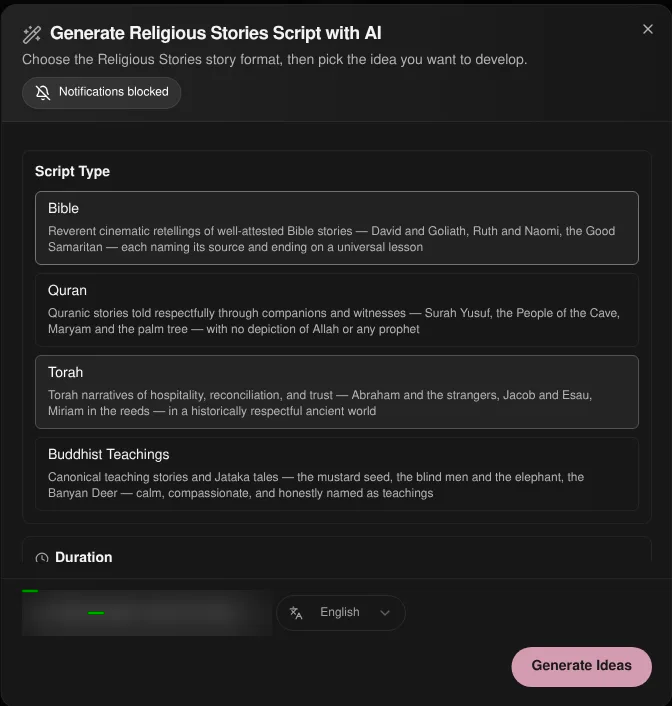
Then pick a Duration: 30s, 45s (the default), 1m, 1.5m, 2m, 3m, 5m, 10m or 15m.
Step 2: Pick the story and generate the script
Choose a source:
- 1Idea List. Click Generate Ideas and pick one of the suggested Bible stories.
- 2Custom Arc. Fill in Central Figure(s) and Story, plus optional extra direction. The default arc is "Ruth The Gleaner" and "Loyalty In The Barley Fields".
- 3Remix Video. Paste a TikTok, YouTube or Instagram link and Korpi writes a new script from it.
Choose the output language at the bottom of the dialog and generate. The narration lands in the Narration Script box, where you can edit any line before you move on.
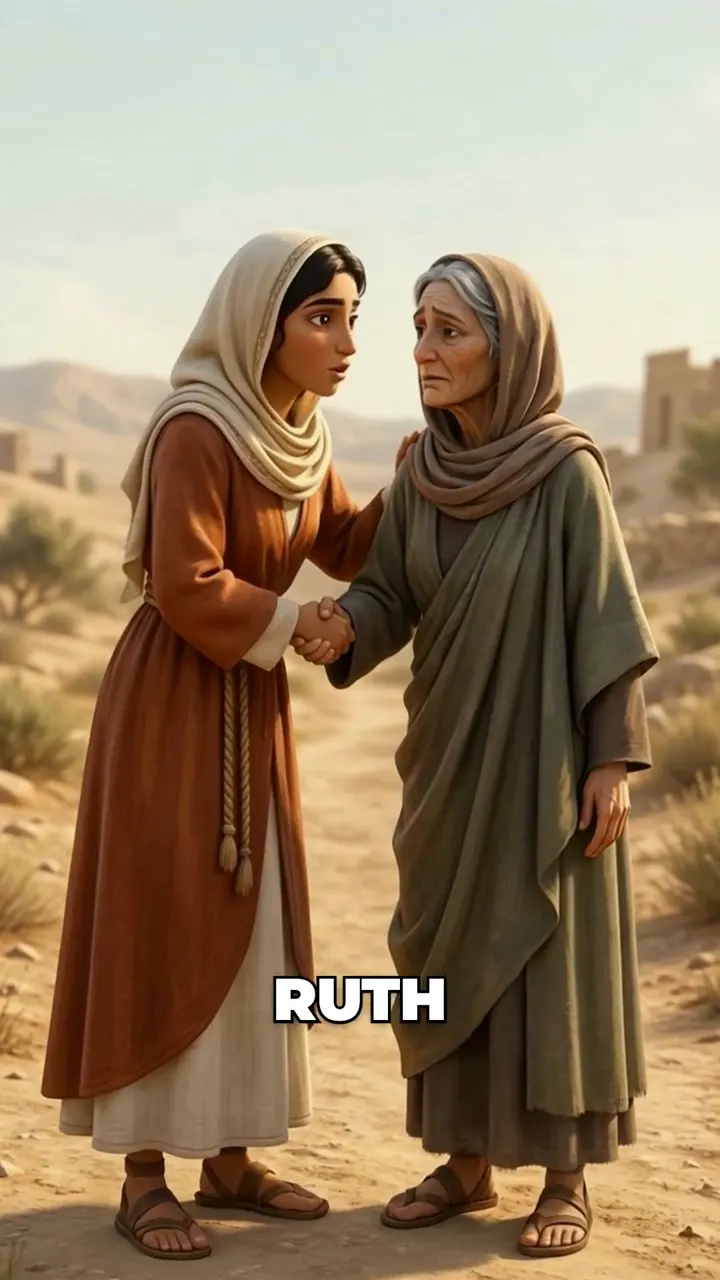
Tip: keep the source line. Viewers of faith content often check the reference, and naming it ("from the Book of Ruth") builds trust.
Step 3: Generate the cast and scenes
On the Scenes tab, click Generate Scenes and Characters. Korpi reads the script, makes a reference image for each main character, and reuses those references in every scene, so Ruth looks the same at Naomi's door and in the barley field.
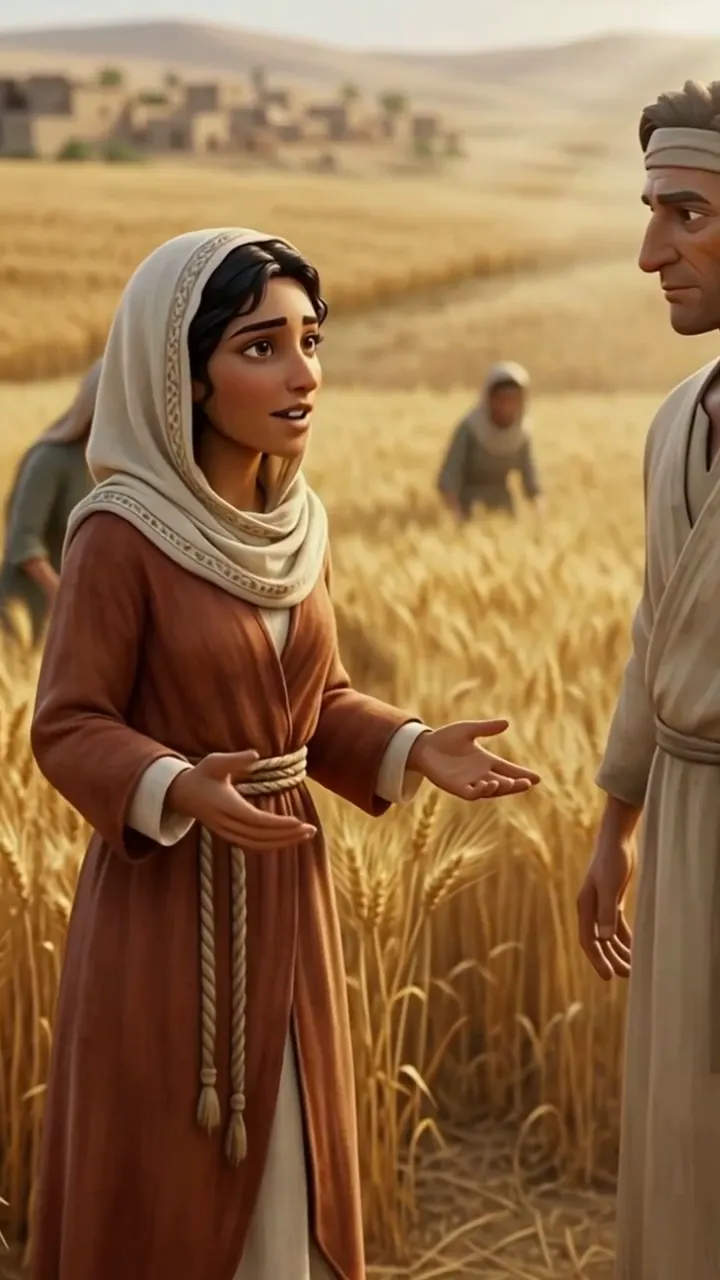
The scenes appear under Generated Scenes with their time ranges. Regenerate any scene that does not match its line. You can keep scenes as stills, animate them one by one, or use Animate All.
Step 4: Audio, captions and render
On the Audio tab:
- Select Background Music. The default track is Sad Themed Audio at 20% volume. You can change it or turn music off.
- Captions. On by default. Pick a caption style that suits a calm narration.
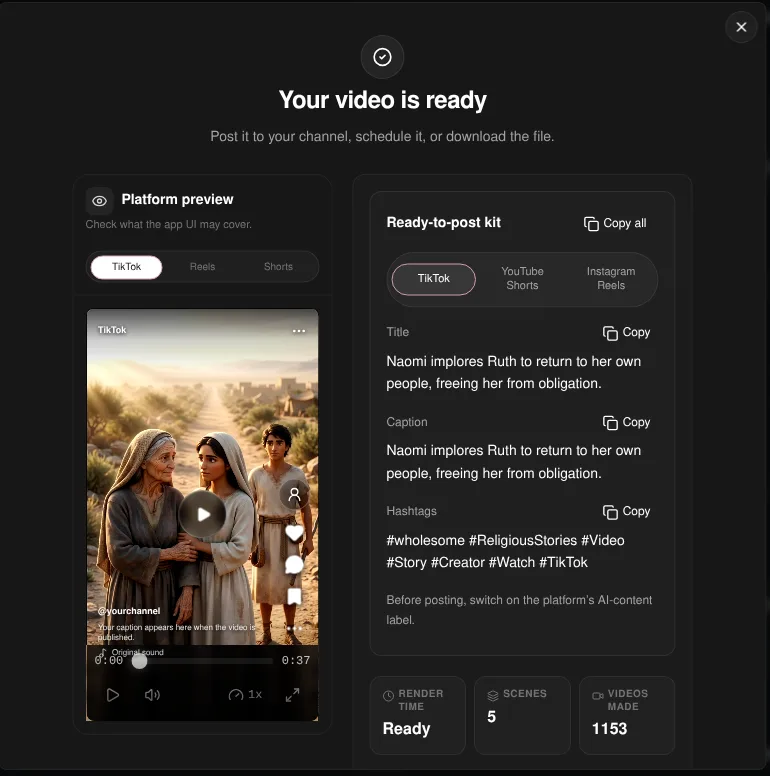
Click Generate video. When the render finishes, Your video is ready shows a platform preview and a ready-to-post title, caption and hashtags you can copy, along with a reminder to switch on the platform's AI-content label.
Plan it for free first (optional)
If you work inside Claude or ChatGPT, connect Korpi MCP. Its script and storyboard planning tools are free on every account, no plan needed. Draft and check the retelling in chat, then paste the final script into the Narration Script box.
What makes a Bible story video work
- One story per video. Ruth and Naomi, not "the whole Old Testament".
- Start on a human moment. A widow on a road or a shepherd boy facing a giant hooks faster than a date.
- Stay faithful. Keep the events as the text tells them. Put interpretation in the closing lesson, not in the plot.
- End on the lesson. One sentence the viewer can take away: loyalty, mercy, courage.
Bible Story FAQ
Which Bible stories can I make?
Any well-attested story you choose. The Bible script type suggests ideas such as David and Goliath, Ruth and Naomi and the Good Samaritan, and Custom Arc lets you name the figure and the story yourself.
Does it do other faiths too?
Yes. The same Religious Stories creator has Quran, Torah and Buddhist Teachings script types, each with its own rules.
Can I use my own script?
Yes. Paste it into the Narration Script box instead of generating one. Korpi plans the scenes from your text.
Is it free?
You can watch the example free, and planning through Korpi MCP is free on any account. Generating and exporting your own Bible story video needs a paid Korpi plan. See pricing for current plans.
See what else Korpi makes
Every video below is a real render — click one and make your own version.
Ready to create viral content?
Watch the example free and plan scripts free with Korpi MCP. Generating and exporting your own Bible story video requires a paid plan.
Open This NicheFound this helpful? Share it with other creators!